encrypt files to emailEarlier this year, I was faced with a situation where I had my friend working on some project for my college in Coimbatore, where we were both certain that all of our email communications were being monitored. I resorted to using a fully-fledged encrypted email system called VaultletSuite where both of us had to install the client on our PCs. While it appeared to be very secure, it was also a bit cumbersome to have to log into a special email client just for my communications with one person.
If you are ever faced with a situation where you feel your communications might be monitored, a somewhat simpler and easier approach would be to encrypt files to email them to the person you’re communicating with. If they know the password, then they’ll be able to decrypt and open those files.

5 Ways to Encrypt Files Before Emailing Them

Encrypting files isn’t new. The field of cryptography extends back into ancient Greece, where the Spartans used ciphers to communicate hidden messages. Cryptography today consists of a dizzying array of algorithms that software applications can use to encrypt password-protected files in a way that is nearly impossible to decipher. I say nearly – because there is always an exception to the rule.

Use Encrypt Files To Quickly Protect Files

All of the solutions I’m going to offer in this article are applications that both you and the recipient install on your computers. On your end, the software will encrypt files or messages using a password you supply, and the recipient can use the software to decrypt that information.
Encrypt Files is an example of one of the easiest applications you can use to accomplish that task.
encrypt files to email
All you have to do is select the files that you want to encrypt, and click on “Encrypt” in the left panel. You’ll be prompted for the password you want to use to encrypt those files.
encrypt files to email freeware
Afterwards, a new copy of that file will appear that is encrypted. You can tell the software to use one of 13 cryptography algorithms, and you can tell it to either leave, delete or shred the original files.

Drag, Drop & Encrypt With dsCrypt

The fastest solution I’ve ever seen to quickly encrypt files is a small freeware app calleddsCrypt.  When you run the dsCrypt executable, a small window will appear on your screen. All you have to do is drag files into the gray box. The program will prompt you for the password you want to use.
encrypt files to email freeware
The files will transform into encrypted .dsc files. The recipient just has to drop the .dsc files into the gray box, type the correct password, and the files will be decrypted and made usable again. I doubt the encryption is anything stellar, but for simple applications this gets the job done.

Encrypt Files Or Email With MEO Encryption

Another file encryption app that I really like a lot is MEO Encryption. This is free encryption software that not only encrypts and decrypts files, but it also lets you send encrypted email messages as well.
encrypt files to email freeware
File encryption also includes a feature where you can save files to a self-extracting executable.
The beauty of this is that the person you’re sending it to doesn’t need to install any software, they just need the correct password. The feature that I love about this software is that you can configure it to use any SMTP account and the software will encrypt email messages and send them directly for you.
encrypt files
Only two crypto algorithms are available, a light one (for fast encryption) and a strong one (for slow encryption). Choose according to your needs.

Use LockNote To Send Encrypted Simple Text

One solution to send text messages that are protected from prying eyes is by writing a message in a text file using LockNote, and then saving it in an encrypted format.  The application feels pretty much identical to Windows Notepad, but when you save the file, you’ll be prompted for a password.
encrypt files
When your recipient runs LockNote on their PC, all they have to do is open the file, answer the password request, and they can read your message.
encrypt files
This is probably the simplest encryption application I’ve ever seen. If ease of use is your priority, I’d highly suggest LockNote.

Encrypt Messages Into Images

Years ago, it hit the news that terrorists were using images to send encrypted messages. You can be sure that most covert intelligence agents were using that technology long before terrorists ever discovered it.
If you want to elevate your encryption efforts into the field of image encryption, then you may want to install 4t HIT Mail Privacy Lite.
I have to be honest, this is probably my favorite app, simply because of the coolness factor. Open any image with the software in “Create Mode“, apply a password and a message, and then save it as a .bmp, .hit. or a .zip file.
encrypt files to email
If you save in bitmap mode, in transit all anyone will see is a picture. When the recipient opens the picture with this app, all they have to do is type the password and the embedded message will appear under “Decrypted text“!
Hopefully, these five encryption solutions offer you plenty of help when you’re looking for a way to encrypt files before emailing them off to folks. Encryption isn’t always foolproof – there’s always someone out there that can break encryption, but at least you can rest assured that you’ve at least tried your best to protect sensitive information as best you could.
Give these apps a try to encrypt files to email, and let us know if they worked out well for you. Which one is your favorite? Share your thoughts in the comments section below.


free secure emailsLast week, as I was working through writing applications for my website, I came across a unique situation that I’d never faced before in my life. One of the applicants was a reporter living and working in a country with a very rigid dictatorship and ironclad control over all Internet traffic in and out of the country. She was willing to provide unique insight into social events going on inside the country, but arranging for the delivery of those stories would be complicated by government monitoring and filtering of Internet traffic.
So I went out in search of some kind of free secure email solution that would at least provide a line of communication that was secure enough so that if anyone wanted to see what we were discussing, they’d at least have to put quite a bit of effort and resources into it. As always, I checked MakeUseOf first. We’ve got great coverage of secure communications, such as Jorge’s article on Fire GPG for Gmail, One Time Message for secure and self-destructing emails, and Tina’s useful list of 5 online encryption tools.
All useful, but nothing quite offered the 2-way secure and encrypted line of communication that I needed. After a fair amount of searching, I came across a free app that fit the bill called VaultletSuite.

Set Up A Secure Line Of Communication

A secure two-way connection is a tall order when you’re dealing with a highly-funded military complex that surely has decryption software the likes of which you could only imagine. With that said, that doesn’t mean that it’s a walk in the park to decrypt well-encrypted email correspondence. So setting up a secure way to communicate is well worth the effort.
send free secure emails
With VaultletSuite – or VaultletMail, which is the tool within the suite I’ll be focusing on – once you install the software, just click to log in, and then click on the link on the login page to set up a new account. In just two or three “Next” clicks, you’ll find yourself staring at your brand-spanking new, highly secure webmail account.
For the most secure connection, both people should sign up for a VaultletMail account, and both people should install the software. According to its about page, the software uses a 2048 bit RSA public key as well as 256 AES encryption to send messages, and it is capable of doing so in multiple languages. While the software won’t protect you from a keylogger you may have on your PC, which will pass along your password you used to log into VaultletMail, the system will protect you, for the most part, from individuals trying to intercept and extract information from your Internet communications.
When you’re composing a VaultletMail email to a friend that has an account in the system, you have several options for further security. The padlock button says it will “protect messages” before sending them to recipients outside the VaultletMail system. How can that possibly work?
secure emails
This is actually an integrated tool called SpecialDelivery. The SpecialDelivery system will send your intended recipient an initial email, which they must respond to by choosing a passphrase that will protect all encrypted  messages you send them. After they’ve accepted your initial email and set up their passphrase, you can send them encrypted emails any time and the communications are secure.
The software also has the ability to prevent the recipient from forwarding, quoting, copying or even printing out the email.
secure emails
The coolest feature as far as I’m concerned is what I call the “self-destructing message” tool. Click on the little clock icon in the menu, and you can decide now long the message will stay available in their Inbox after they’ve viewed it, and you can also limit the number of times it can be viewed.
For an added James Bond touch, add a sentence to the end of your email that reads, “…and this message will self destruct in 30 minutes.”
secure emails
You can also configure how the sent message itself is stored in your own mailbox. If you’re sending  a message that you don’t want anyone at all to read other than the recipient, you can just set a very short life to the email, and then click “Do not keep Sender’s copy” in the options menu for ScopeControl and HalfLife.
how to encrypt and secure your emails
Another feature for some added privacy – if you’re sending the message to a VaultletSoft recipient, you can make yourself anonymous by selecting “sender.name.withheld@vaultletsoft.com” in the “From” dropdown list.
Here’s a good example of a secure email in the inbox, with no sender listed and a self-destruct time of 31 days.
how to encrypt and secure your emails
free secure emails
If you live in a region of the world where Internet communication is regularly intercepted, using this encrypted system as your regular email service would be a very smart idea. At the very least, it will make it very difficult for the government to access your traffic, and nearly impossible for an amateur to view it.
Give VaultletSuite a try and let me know whether you agree that it’s one of the easiest email encryption systems in the world. Do you like the features? Is there anything you’d change or add? Share your thoughts in the comments section below.


gmail storage space

Google Mail currently offers 7,679 MB of free storage. For the average user, that is enough space to last a lifetime. But what if you run out of storage space nevertheless? How can you find and delete obsolete emails in bulk or track down large attachments to regain precious MBs? This article highlights three ways to quickly make room for more mail.


The Basics

Before we begin, let me go through some basics. I recommend to set your maximum page size to show 100 conversations per page, which will make scanning emails easier. To do this, click the wheel icon at the top right of GMail and select Mail Settings from the drop-down menu. In the General tab, select 100 from the drop-down list in Show x conversations per page. When you’re done, scroll to the bottom of the page and click the Save Changes button.gmail storage space

When a folder or search result contains more than 100 emails, Gmail lets you select all of them, even though you cannot see more than 100. First, click the Select checkbutton at the top left to select all emails shown on the current page. Then note the little bit of text directly above these 100 emails. It will say something like “All 100 conversations on this page are selected. Select all xxx conversations (…)” Click the second part of that text and all respective emails will be selected, no matter how many there are. You can now either delete all of them,mark them as read or unread, label them etc.
free up gmail space

1. Empty Trash & Delete Spam

Messages that have been labelled as spam or trash for more than 30 days are deleted automatically. However, when you are in urgent need for space, be sure to delete these emails first. Both labels provide a little link above the list of emails that allows you to delete all messages immediately.
free up gmail space


Be mindful that sometimes legitimate emails are marked as Spam. Thus, I always scan emails before deleting them forever. In this situation, the first tip from the basics section above may be helpful, i.e. showing up to 100 messages per page.

2. Find Messages With Attachments

The next best way to free up space, is to locate emails with large attachments. To do this, simply type the operator has:attachment in the search field. Clicking the little arrow in the search field will open up additional filter options.
free up gmail space
You can fine tune the results by searching only for specific file types. Either add the respective file type to the above operator, e.g. has:attachment jpg or use another operator, which works just as well: filename: .jpg
gmail search has:attachment and specific file type
gmail search file type
While you can search for all emails with attachments, there is no way to sort emails by size in Gmail. If you don’t fancy an IMAP workaround, where you use a desktop client to sort emails by size, I recommend using the online tool Find Big Mail.
Find Big Mail scans your Gmail account and labels emails based on four categories: top (biggest emails), emails over 1MB, emails over 5MB, and emails over 10MB. You can scan the respective labels in your GMail account, download attachments, i.e. back them up locally, and delete the respective emails. Finally, be sure to empty the trash (point 1), to delete emails forever. Unfortunately, removing just the attachment from an email is not possible.
An exemplary result of a Find Big Mail scan is shown below. The labels will be shown in the sidebar of the Google Mail webmail client.
manage gmail space
A more thorough write-up of this point can be found here: How To Quickly Find Messages With Attachments In Gmail

3. Find & Delete Emails in Bulk

Gmail is my online email archive and personally, I don’t want to delete most of the emails with attachments. However, there are lots of emails without attachments that I really don’t want to keep forever, such as newsletters, notifications, adverts, and other stuff that ended up in my archive at some point. So how about getting rid of these space wasters first?
For this task, the first step to create a filter from a specific email and/or using the advanced search comes in handy. Find an example of an email that you want to remove from your archive, then click the little arrow on the right-hand side next to the email header, and select Filter messages like this.
The advanced search with a suggested filter or in this case search term will pop up. Make sure this only covers emails you really want to delete and adjust if necessary. When you are satisfied with the result, use the tip for selecting all conversations matching the search criteria (see basics above) to manually delete all of these messages.
With the above example I deleted over 1,800 emails and freed up 1% of additional space.
gmail storage space
Note that if you actually create a filter with the search, you can delete all past emails, but you also will delete all future emails matching the keywords, until the respective filter is deleted. Generally, it is a better idea to opt out of email subscriptions, rather than creating a filter to automatically send them to the trash. In most countries, respective unsubscribe options are required by law and are typically found in the small print at the very bottom of the email. Filtering to the trash should be a last resort in case unsubscribing is not possible.


The u torrent usually has a good seed management system. But for all the connections they don't configure themselves to be opt. We have to make some changes in the preferences.
So follow my video for ( especially Indian ) slow speed connections of network.


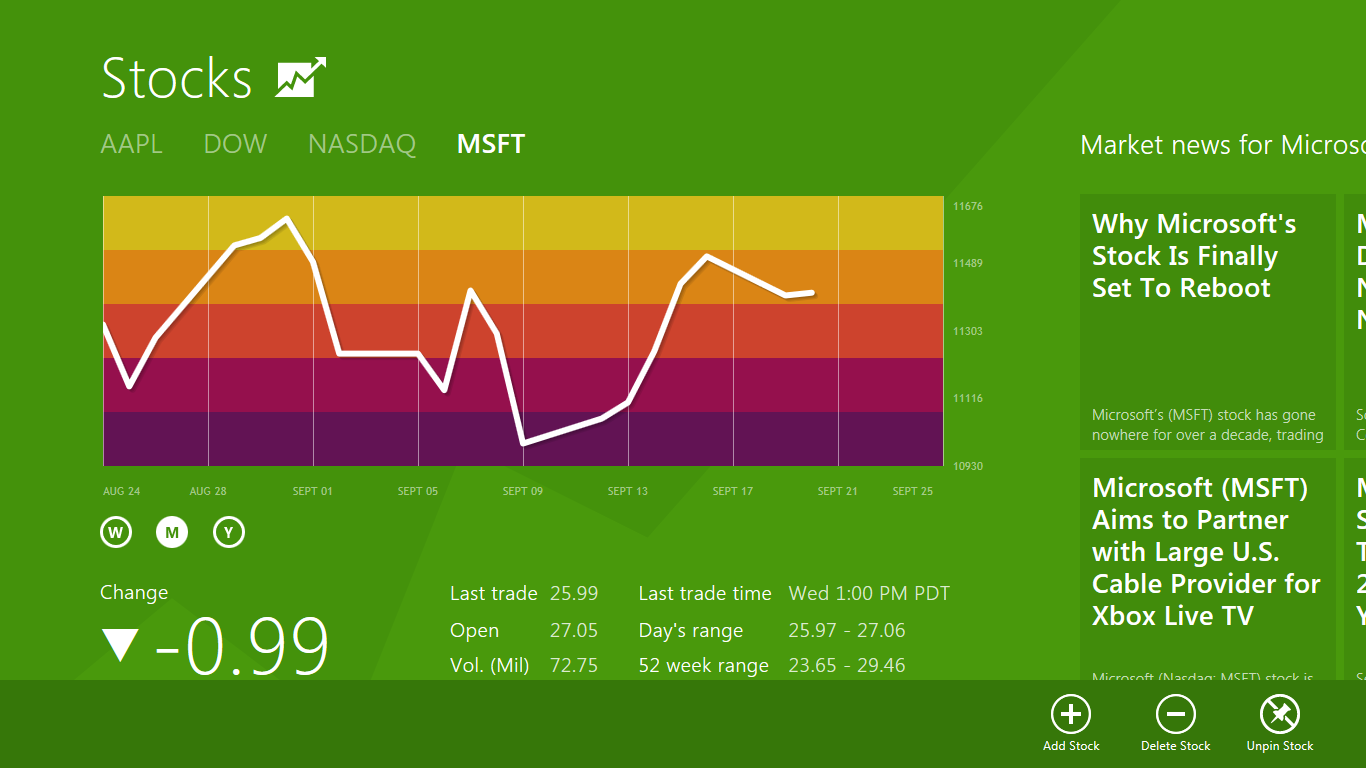
1. App bar

At the bottom of the screen is the app bar
Windows 8 apps aim to be simpler than old-style Windows applets, which means it's goodbye to menus, complex toolbars, and many interface standards. There will usually be a few options available on the App bar, though, so if you're unsure what to do then either right-click an empty part of the screen, press Windows+Z or flick your finger up from the bottom of the screen to take a closer look.

2. What's running?

Windows 8 tips
The task manager in windows 8
    If you launch a Windows 8 app, play with it for a while, then press the Windows key you'll switch back to the Start screen. Your app will remaining running, but as there's no taskbar then you might be wondering how you'd ever find that out. You could just press Alt+Tab, which shows you what's running just as it always has. 

Holding down the Windows key and pressing Tab displays a pane on the left-hand side of the screen with your running apps. (To see this with the mouse, move your cursor to the top left corner of the screen, wait until the thumbnail of one app appears, then drag down.)
And of course you can always press Ctrl+Shift+Esc to see all your running apps in the Task Manager, if you don't mind (or actually need) the extra technical detail.

3. Closing an app

Drag and drop the application  that you want to close
If you want to close down an app anyway, though, move the mouse cursor up to the top of the screen. When it turns from the regular mouse pointer to the icon of a hand, hold down the left mouse button and drag
 it down the screen. Your app should shrink to a thumbnail which you can drag off the screen to close it. Windows 8 apps don't have close buttons, but this isn't the issue you might think. Apps are suspended when you switch to something else so they're only a very minimal drain on your system, and if you need the system resources then they'll automatically be shut down. (Their context will be saved, of course, so on relaunching they'll carry on where you left off.) If that's too much hassle, then simply pressing Alt+F4 still works. And when all else fails then press Ctrl+Shift+Esc to launch Task Manager, right-click something in the Apps list and select End Task. Beware, though, close something you shouldn't and it's easy to crash or lock up your PC.
Windows 8 tips

4. Mastering Internet Explorer in Windows 8

Right-click an empty part of the page or flick your finger down from the top of the screen, though, and you'll find options to create and switch between tabs, as well as a Refresh button, a 'Find' tool and the ability to pin an Internet shortcut to the Start page. Click the spanner icon and select 'View on the desktop' to open the full desktop version of Internet Explorer. Click the Internet Explorer tile from the Start menu and you'll launch a full-screen version without toolbars, menus or sidebars, which like so much of Windows 8 may leave you initially feeling lost.

5. Run two apps side by side


50 Windows 8 tips, tricks and secrets
Windows 8 apps are what Microsoft calls "immersive" applications, which basically means they run full-screen - but there is a way to view two at once. Swipe from the left and the last app you were using will turn into a thumbnail; drop this and one app displays in
 a sidebar pane while your current app takes the rest of the screen. And you can then swap these by swiping again.

6. Spell check

                              Windows 8 apps all have spellcheck where relevant, which looks and works much as it does in Microsoft Office. Make a mistake and a wavy red line will appear below the offending word; tap or right-click this to see suggested alternative words, or add the word to your own dictionary if you prefer.

7. Run as Administrator


                           Some programs need you to run them with Administrator rights before they'll work properly. The old context menu isn't available for a pinned Start screen app, but right-click one, and if it's appropriate for this app then you'll see a Run As Administrator option.


8. Make tiles larger and smaller


                     You'll notice that some Windows 8 apps have small live tiles, while others have larger tiles that take up the space of two tiles. Right-clicking on a Windows 8 
Easy to uninstall too

app's Start screen tile will display a few relevant options. If this is one of the larger tiles, choosing 'Smaller' will cut it down to half the size, freeing up some valuable Start screen real estate.


9. Uninstall easily


Or, if you're sure you'll never want to use an app again, choose 'Uninstall' to remove it entirely.


50 Windows 8 tips, tricks and secrets
Uninstalling from the start menu
If you want to hide an unused app for now, select 'Unpin from Start'. The tile will disappear, but if you change your mind then you can always add it again later. (Search for the app, right-click it, select 'Pin to Start'.)


8. Apps and privacy

50 Windows 8 tips, tricks and secrets
App store client for windows 8


It is worth keeping in mind that by default Windows 8 apps can use your name, location and account picture. If you're not happy with that, it's easily changed. Press Win+I, click More PC Settings, select Privacy and click the relevant buttons to disable any details you'd rather not share.

9. Administrative tools

50 Windows 8 tips, tricks and secrets
Experienced Windows users who spend much of their time in one advanced applet or another are often a little annoyed to see their favourite tools buried by Windows 8. Microsoft has paid at least some attention, though, and there is a way to bring some of them back.
Open the Charm bar by flicking your finger from the right-hand side of the screen and select 'Settings' then 'Tiles'. Change 'Show administrative tools' to 'Yes' and click back on an empty part of the Start screen. And it's as simple as that. Scroll to the right and you'll find a host of new tiles for various key applets - Performance Monitor, Event Viewer, Task Scheduler, Resource Monitor and more - ready to be accessed at a click.


Recent Comments